GarageBooks
Track what your Tesla costs to own. Record every expense (purchase, insurance, registration, tyres, servicing) in a small web app, and see the total cost of ownership in TeslaMate's own Grafana, alongside the charging costs TeslaMate already tracks.
Vibe coded
This project was written with an AI coding assistant (Claude Code), directed
and tested by a person, not hand-written or audited line by line. It has tests, runs in a
read-only, non-root container and only writes inside its own garagebooks schema, but treat it as
you would any young, unreviewed software: back up your TeslaMate database before first use, and
read the code before you trust it with anything you care about.
New here? Start with Setup.
The dashboard
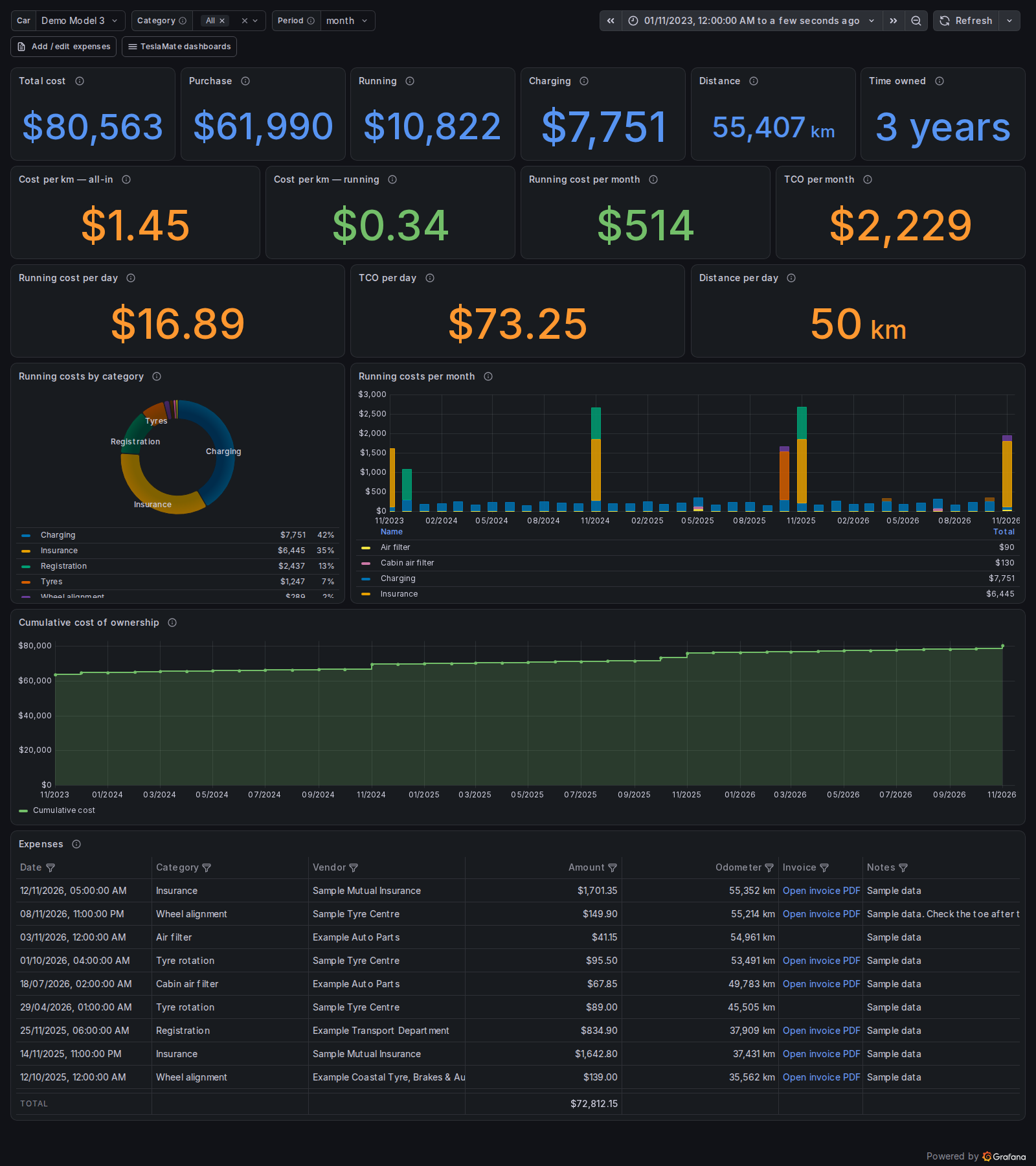
The Cost of Ownership dashboard in Grafana: total cost of ownership, purchase vs running vs charging, cost per km, per day and per month, monthly spend by category, cumulative cost, and a table of every expense with a link to its invoice. What the dashboard counts explains each figure.
The expense list
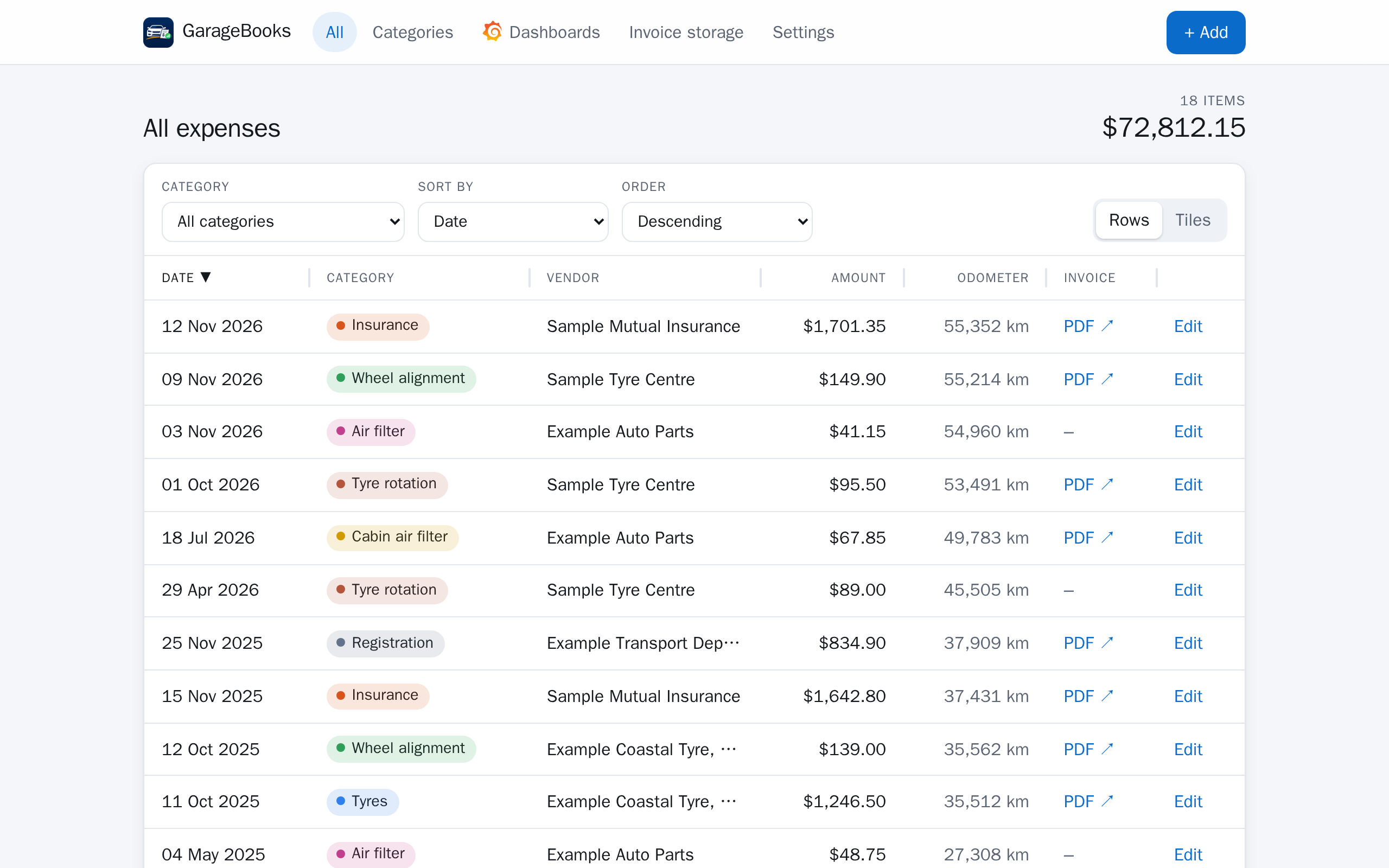
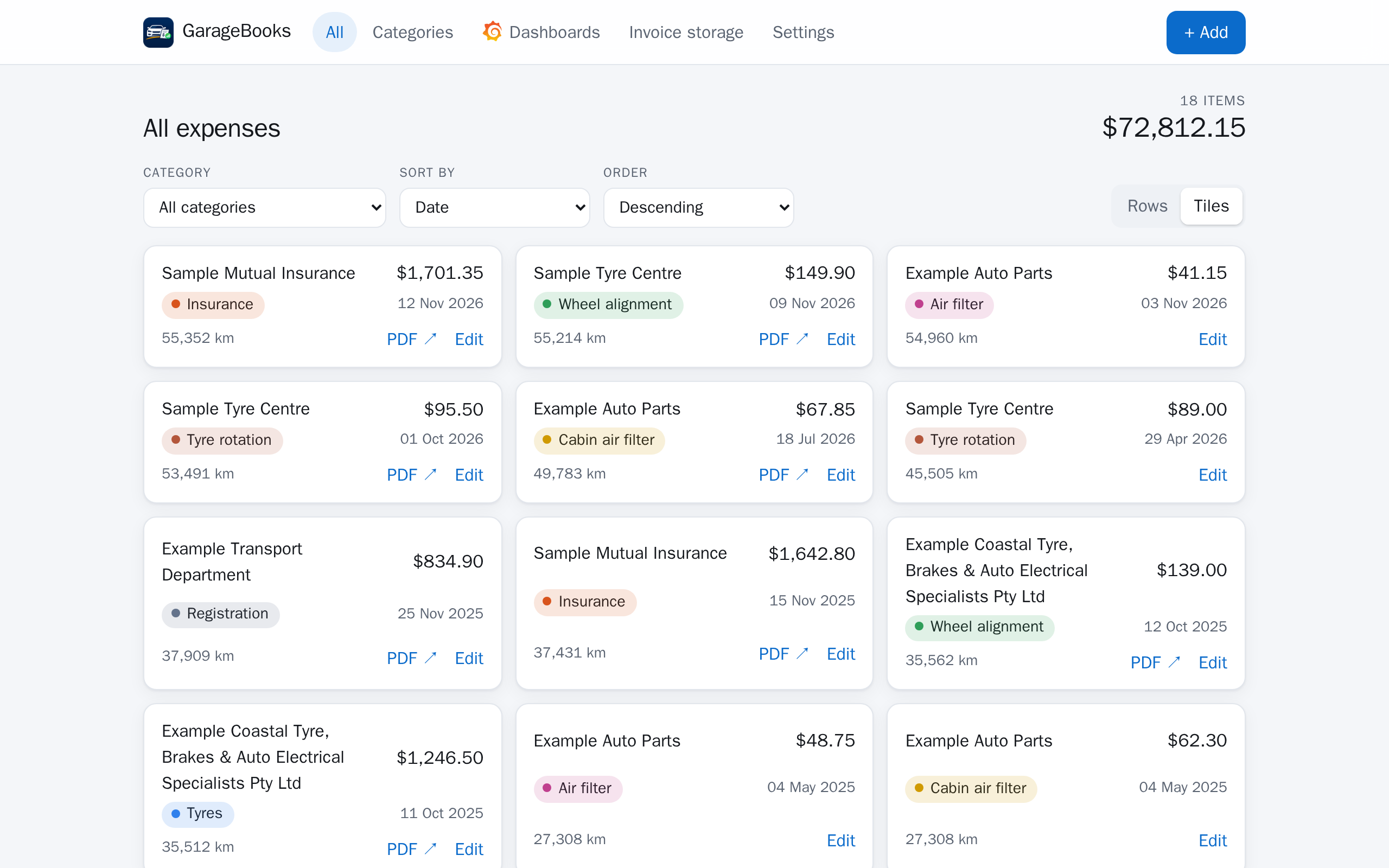
Every expense, with its category colour, the total and a link to the invoice. Sort by any column, either way (click a heading, or use Sort by and Order), and switch between rows and tiles with the toggle beside the filter. In rows, drag the edge of a column heading to make that column wider or narrower (double-click it for the usual widths); your widths are remembered in the browser. Refunds and rebates show in green, and the app follows your device's light or dark setting.
Cars
The Cars page lists your cars. The ones TeslaMate tracks are added by themselves and follow TeslaMate's name until you rename them here. Any other car, electric or not, is added by hand, with its type, make and model; TeslaMate isn't needed at all. The name is optional: a car with none is called by its make and model. The purchase price, date bought and odometer at purchase are edited on the car's card too. They are kept as one expense in a purchase category, so the price counts once; a car with several purchase expenses is edited in the expense list. Each car shows its latest odometer: TeslaMate's, or else the odometer on its latest expense. The page also says whether TeslaMate is connected, not configured, or unavailable and why.
A car paid for through a novated lease has a Lease link: the details from the provider's statement, its yearly budgets (when budgets are turned on) and a few checks on them. See Leases.
Selling a car
When you sell a car, open Sold this car? on its card and enter the date it sold and what it sold for (0 if it was given away), and the final odometer, then Save sale. The final odometer is required for a car TeslaMate doesn't track, and optional for one it does (leave it empty to use TeslaMate's). The card then reads Sold 12 Mar 2026 for $31,000.00. Clear sale takes it back if you entered it by mistake. The date can't be in the future; a date before the car's first expense is accepted, with a warning.
A sold car is not removed. Its total cost of ownership is the purchase price plus running costs and charging, less the sale price; the time owned, and so every per-day and per-month figure, stops at the sale date; and the distance stops at the final odometer, or the last odometer known on or before the sale date. You can still add an expense to a sold car (a late bill, say), but it goes after your other cars in the Add form's car list, marked (sold). The dashboard names the car (sold) in its Car box and shows a Sold tile. See What the dashboard counts.
Reminders
The Reminders page keeps track of what a car needs next: service that falls due on a date, an odometer reading or whichever comes first, repeating ones such as a tyre rotation every 10,000 km, and the registration and lease end from a car's lease. Resolve one by linking the expense that did the job. See Reminders.
Adding an expense
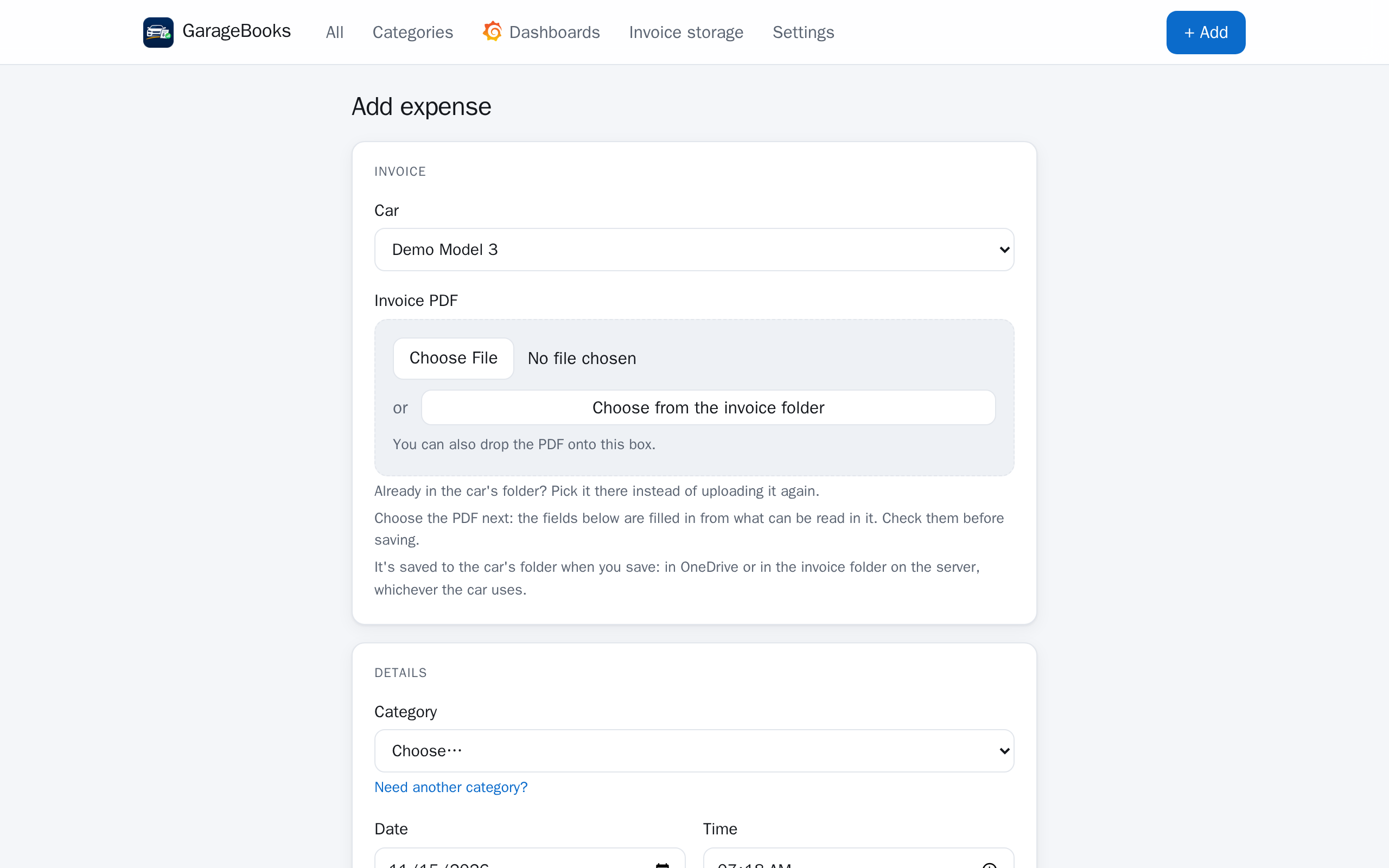
Category, date, time, amount, odometer, vendor, notes and the invoice. The odometer can be filled in
from TeslaMate's own position data for the chosen date and time. The amount field works out sums
(120.50+89.95, 400/3) when you leave it, press Enter or save, and has keys for the operators.
Editing an expense, then saving or cancelling, returns you to the category and order you were
looking at.
Payment calculator
When a payment is made of several parts, open Payment calculator under the amount field to work out what it really cost. A $100 gift card bought for $95, plus $42.50 in cash, covers a $142.50 invoice for a true cost of $137.50.
- Add a part for each payment. Enter its face value, then choose how it cost you: an amount paid (the $95 you paid for the gift card), a percentage off (5% off), or the full value (cash).
- The calculator shows the invoice total covered, the true cost and the saving. Empty parts are ignored. A part that doesn't make sense, such as a discount over 100%, is outlined and stops the total until you fix or remove it.
- Press Use this amount to put the true cost in the amount field, then save as usual.
Working is in whole cents and rounds to the nearest cent. The parts are not saved or sent anywhere: only the amount you use is recorded, and the face value is not kept.
Choosing the invoice PDF fills in what can be read from it. With OneDrive uploads on, the PDF goes into that car's OneDrive folder (choose it, or drop it onto the invoice box) and the link is filled in for you. Or keep them on your own server: with an invoice folder mounted (a NAS share, say), the app saves the PDFs there, per car and category, and shows them itself behind your login. Invoices already in either can be imported in bulk.
Starter categories: Initial purchase, Insurance, Registration, Tyres, Cabin air filter, Air filter, Wheel alignment, Tyre rotation. Add more on the Categories page (new ones count as running costs).
Change history
The History page lists every add, edit and delete of an expense or category, newest first: when, who, and what changed (for an edit, each changed field as old → new; for an add or delete, the whole row). Filter it by car, by expenses or categories, or by kind of change. It is read-only: if something was changed or deleted by mistake, enter the old values again. See Reference for how it is recorded.
How it fits together
The expenses live in their own garagebooks schema inside the TeslaMate database, so Grafana joins
them to TeslaMate's charging costs and odometer with no second datasource.
 browser ──► proxy + forward-auth ──► GarageBooks (Flask/gunicorn) ──► TeslaMate Postgres
                                                                       ▲   schema `garagebooks`
                                     Grafana (TeslaMate datasource) ───┘   + public.* (read-only)
The app has no login of its own, so it must sit behind a forward-auth gate: see Setup.
Notices
This project is an unofficial community tool and is not affiliated with, endorsed by, or supported by the official TeslaMate project. It reads data from a TeslaMate database. Not affiliated with Tesla, Inc.
OneDrive is a trademark of Microsoft Corporation and Grafana is a trademark of Grafana Labs. This project is not affiliated with or endorsed by either. The OneDrive and Grafana logos are fetched at runtime from selfh.st/icons (CC BY 4.0); they are not part of this repository.