Invoice folder on the server
Invoice PDFs can be kept in a folder on the server the app runs on, such as a NAS share mounted on the Docker host, instead of in cloud storage. The app saves them there and shows them itself: the PDF link in the expense list opens the file in your browser, through the same login as the rest of the app.
It does what OneDrive uploads does. The expense form takes the PDF, names it from the template under Settings → Invoice file name and saves it into the category's subfolder of the folder you chose for that car. Invoices already in the folder can be imported, with the same preview and learning. Both can be on at once: each car uses one or the other.
Turning it on
A container only sees what is mounted into it, so the folder is mounted once and each car's folder is then chosen inside it, in the app.
-
Pick the folder on the server. Use the narrowest folder that holds all the cars' invoices, for example
/mnt/nas/cars/invoices: the app can read and write everything in it. It must already exist. -
Let the app write to it. The app runs as user and group
10001, not as root. See Who owns the files for a local disk, an SMB share and an NFS share. -
Name it in
.env:INVOICES_HOST_DIR=/mnt/nas/cars/invoices -
Start the app with
docker-compose.invoices.ymladded. It mounts that folder at/invoicesand sets the app'sINVOICES_DIRto it.docker compose -f docker-compose.yml -f docker-compose.invoices.yml up -dBehind Traefik, list all three files (
-f docker-compose.yml -f docker-compose.traefik.yml -f
docker-compose.invoices.yml
). The log then showsinvoice_folder=on:docker compose logs garagebooks | grep started -
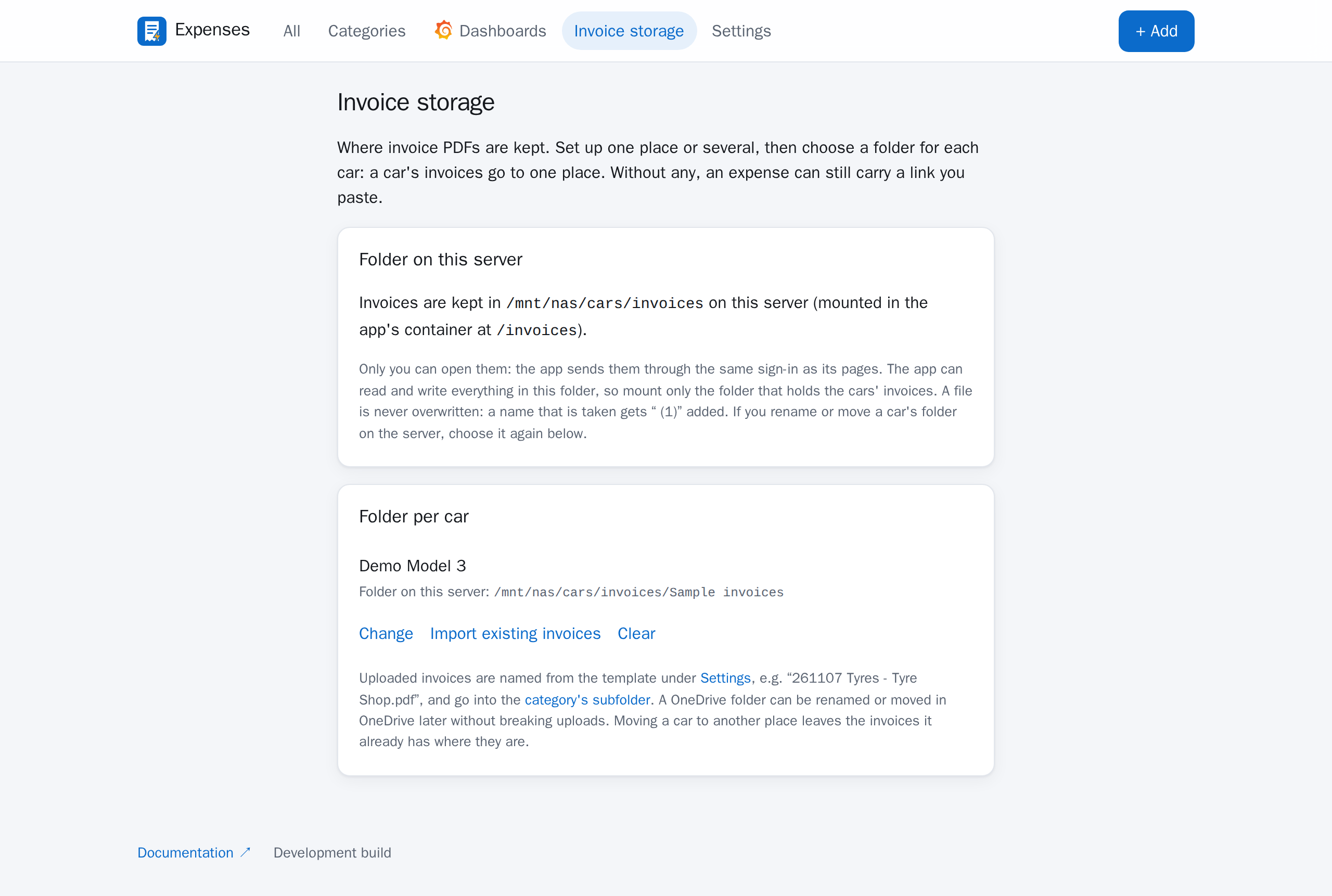
Choose a folder for each car on the app's Invoice storage page, under Folder per car: browse into the folder, creating one with New folder if it doesn't exist yet, and press Use. The page's Folder on this server card shows the folder it is using, by the path you gave in
INVOICES_HOST_DIR, and each car's folder is shown in full below it. Check that path is the share, not an empty folder on the server's own disk: see If the share isn't mounted. Choosing the first car's folder leaves a hidden file,.garagebooks, at the top of the folder.
If the share isn't mounted
Two things keep invoices from landing on the wrong disk when the share isn't there.
The folder is missing. If INVOICES_HOST_DIR doesn't exist at all, Docker refuses to start the
app (create_host_path: false in docker-compose.invoices.yml) instead of making an empty folder.
Only the mount point is there. This is the usual case: the share didn't mount, but the folder it
mounts on, /mnt/nas/cars/invoices, still exists on the server's own disk, empty. To the app that
looks just like an empty share, so it uses the hidden .garagebooks file instead. It writes the
file when you choose a car's folder, and from then on, while any car keeps its invoices in this folder,
a folder without that file is treated as not mounted:
- the Invoice storage page says the folder isn't there and asks whether the share is mounted,
- saving an expense with a PDF says the same and saves nothing,
- browsing, choosing a folder, New folder, the file window and importing are refused,
- invoices in the list can't be opened until the share is back,
- nothing is written anywhere, so the server's own disk stays untouched.
Mount the share and reload the page; nothing in the app needs changing.
Stopping instead of running without it
By default docker-compose.invoices.yml doesn't let the app run without its folder
(INVOICES_REQUIRED=1). If the folder is missing, or is only the empty mount point, when the app
starts, it logs why and stops:
docker compose logs garagebooks
[ERROR] INVOICES_DIR /invoices can't be used, and INVOICES_REQUIRED=1, so the app won't start: The invoice folder (INVOICES_DIR) doesn't look like the one your cars use: it has no .garagebooks file, ...
The container's restart policy (restart: unless-stopped) starts it again and again, so it comes up
by itself once the share is mounted; docker compose ps shows it as Restarting until then. If the
folder goes away while the app runs (the NAS restarts, say), its health check fails and
docker compose ps shows it as unhealthy, with the reason in the log.
To keep the app running while the share is down, so expenses can still be entered without their
invoices, set this in .env and start the app again. It then only warns, in the log and on the
Invoice storage page:
INVOICES_REQUIRED=0
Leave .garagebooks where it is, and copy it along if you move the invoices to a new share. If
the app reports a folder you know is the right one (you deleted the file, say), either clear each car's
folder on the Invoice storage page and choose it again, which writes the file afresh, or create it
yourself:
touch /mnt/nas/cars/invoices/.garagebooks
Before the first car's folder is chosen there is nothing to compare with, so check the path the page shows then. Two habits make an unmounted share harder to miss:
- Mount the share before Docker starts. With systemd,
x-systemd.automountin/etc/fstabmounts it the first time anything looks, and a share that can't be reached then gives an error rather than an empty folder.nofailkeeps the server booting if the NAS is off. - Keep the bare mount point closed. Leave the empty folder the share mounts on owned by root, as
mkdirmakes it (sudo mkdir /mnt/nas/cars/invoices), and don't give it to the app's user: then even before the first car is set up, nothing can be written there unless the share is mounted over it.
If you run the app some other way, the two things that matter are the mount and INVOICES_DIR, the
path of the folder inside the container. The container can't see where the folder is on the server,
so the page shows INVOICES_HOST_DIR when the app is given it, and the container's path otherwise.
Who owns the files
The app writes invoices as the user it runs as, 10001:10001 unless you change it. That user needs
to read and write the folder.
-
A folder on a local disk. Give it to the app:
sudo chown -R 10001:10001 /mnt/nas/cars/invoices -
An SMB (CIFS) share. Ownership comes from the mount, not the files, so
chowndoes nothing. Either mount it for the app's user, or run the app as the user it is already mounted for (below). A line in/etc/fstabon the Docker host that mounts a share for the app's default user, with the options above://nas.example.lan/invoices /mnt/nas/cars/invoices cifs credentials=/etc/samba/creds-nas,uid=10001,gid=10001,file_mode=0660,dir_mode=0770,_netdev,nofail,x-systemd.automount,x-systemd.mount-timeout=30 0 0Then make the mount point, have systemd pick up the new line, and mount it:
sudo mkdir /mnt/nas/cars/invoicessudo systemctl daemon-reload && sudo mount /mnt/nas/cars/invoicesA share already mounted for your own user (
uid=1000,gid=1000, say) works just as well withGARAGEBOOKS_UID=1000andGARAGEBOOKS_GID=1000. If the two don't match, saving an invoice says The app has no permission to write in the invoice folder and writes nothing. -
An NFS share. Ownership is the numeric user and group on the NFS server. Either give the exported folder to
10001:10001there, or run the app as the user that already owns it (below). An export withall_squashwrites everything as itsanonuid/anongid, whoever the app runs as, so that user must own the folder.
Invoices the app saves can be read by everyone on the server and written by their owner and group
(664), never by everyone. To keep them private to the owner and group, close the folder itself, as
nobody can open a file in a folder they can't enter (on a share, dir_mode=0770 above does this):
sudo chmod 770 /mnt/nas/cars/invoices
To run the app as another user, set these in .env and start it again:
GARAGEBOOKS_UID=1000
GARAGEBOOKS_GID=1000
One thing to do when you change the user on an installation that has already run: the Grafana
dashboard file in the garagebooks-dashboards volume still belongs to the old user, and the
app can no longer replace it (the log says Could not write the Grafana dashboard). Hand the volume
over once:
docker run --rm -v garagebooks-dashboards:/d busybox chown -R 1000:1000 /d
When the app can't write, saving an expense with a PDF says The app has no permission to write in the invoice folder and saves nothing. A car with no folder chosen is different: the expense is saved, and the notice says the PDF wasn't uploaded.
Using it
Adding an invoice. On + Add, choose the PDF (or drop it on the invoice box) and save. The
file is written to a temporary file beside its final name and then moved into place, so a
half-written file is never seen. It is called 261107 Tyres - Tyre Shop.pdf by default (the template
and its % aliases are described in OneDrive uploads), and a name that is taken gets
(1) added: a file is never overwritten. The subfolder is set per category on the Categories
page, and is made the first time it is needed.
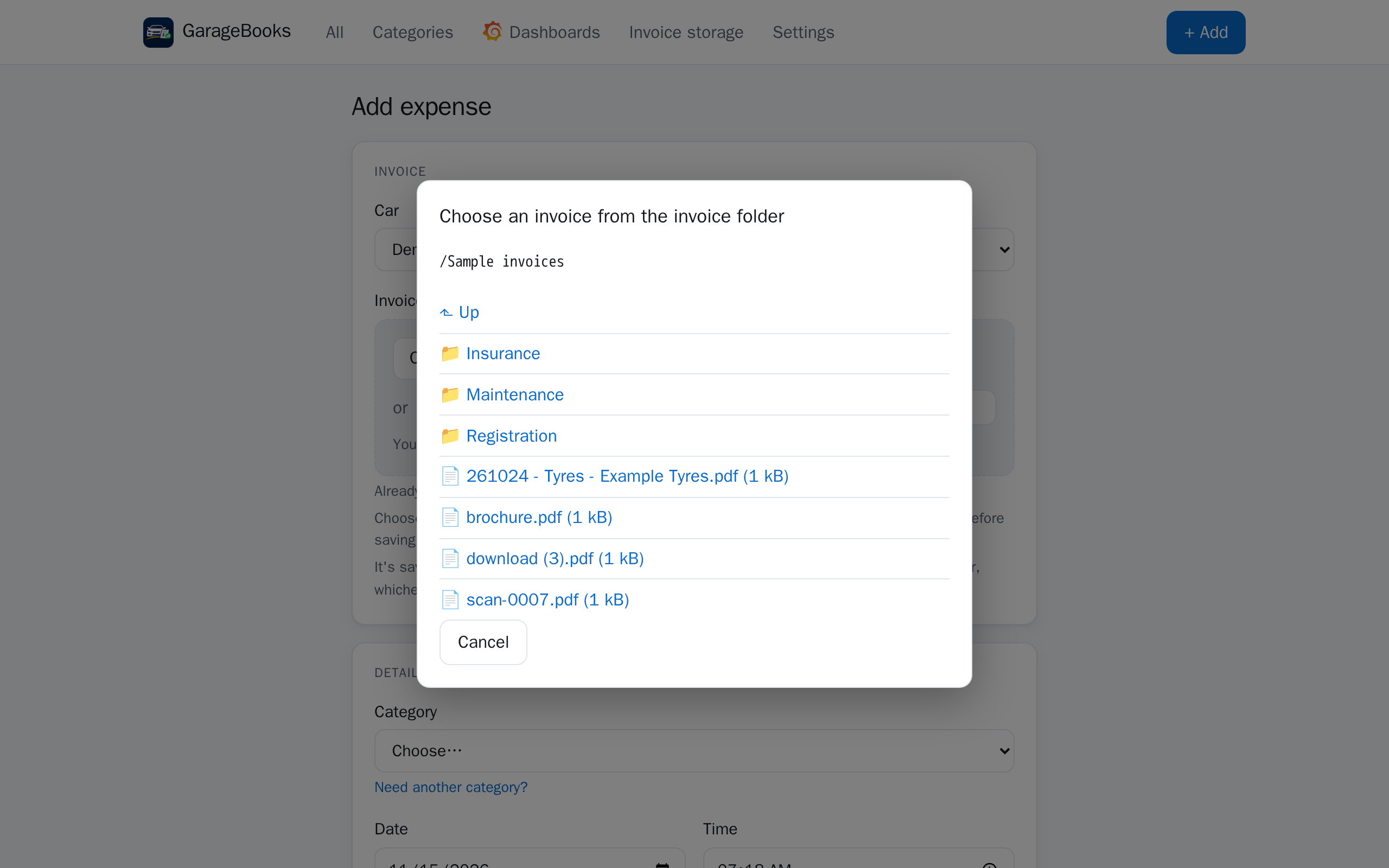
If the invoice is already in the folder, press Choose from the invoice folder instead. A window opens over the form, in the car's folder: open a folder to go into it, or Up to go above it, as far as the top of the mounted folder. Choosing a PDF makes it the expense's invoice and fills in the form from what can be read in it. Nothing is copied or moved.
Opening an invoice. The PDF link in the expense list opens it in the browser's own PDF viewer. The edit page shows the file's name, with a Download link beside it, and a box to remove it from the expense (the file stays in the folder). The Grafana dashboard's expense table links to it too, at the address under Settings → This app's URL, so set that. Whoever opens one goes through the app's forward-auth login first; there is no public or share link.
Importing. Invoice storage → Import existing invoices beside a car reads the PDFs in its folder and the folders below it that have no expense yet. See Importing invoices.
Good to know
- Each car uses one storage. Both are set up on the one Invoice storage page. With both on, a car on OneDrive has Move to a server folder beside it, and the other way round. Expenses already saved keep the invoice they have: OneDrive links stay OneDrive links.
- Moving files. An expense stores the file's path below the mounted folder, so mounting the folder somewhere else on the host changes nothing. Renaming or moving a file or folder inside it by hand does break the link of every expense that points there (the app says Invoice not found). If you rename a car's folder, choose it again on the Invoice storage page.
- Only inside the folder. Every path is checked against the mounted folder before anything is read or written, and a symbolic link that leads out of it is refused. Only PDFs are saved or served (up to 20 MB, checked by content when uploaded). Files and folders whose names start with a dot, such as a NAS's recycle bin, are left out.
- Backups. The PDFs are not in the TeslaMate database, only their paths are. Back the folder up
with whatever backs up the share,
.garagebooksincluded (see Backup and restore). - Turning it off. Remove the compose file from the command and start the app again. The files stay where they are; expenses that point at them show no working link until it is back on.